Pages

Monthly Challange

Monthly Challenge is
Here

Wednesday, 18 January 2012

WEEK 9 WINNER & TOP 3

Hello everyone, it's time to announce the winner and top 3 of our week 9 Challenge!

The winner is

and the top 3


Congratulations to you all, if you could please contact Kelly at kmsmith@sky.com
to claim your prize and blog badges.

Thursday, 12 January 2012

Week 11


Welcome to week 11. Thank you for joining in with our challenges. This week we are sponsored by Floppy Latte Designs.


Here is this weeks inspirational photo


Here are the DT's creations.


Kate


Erin


Kelly M


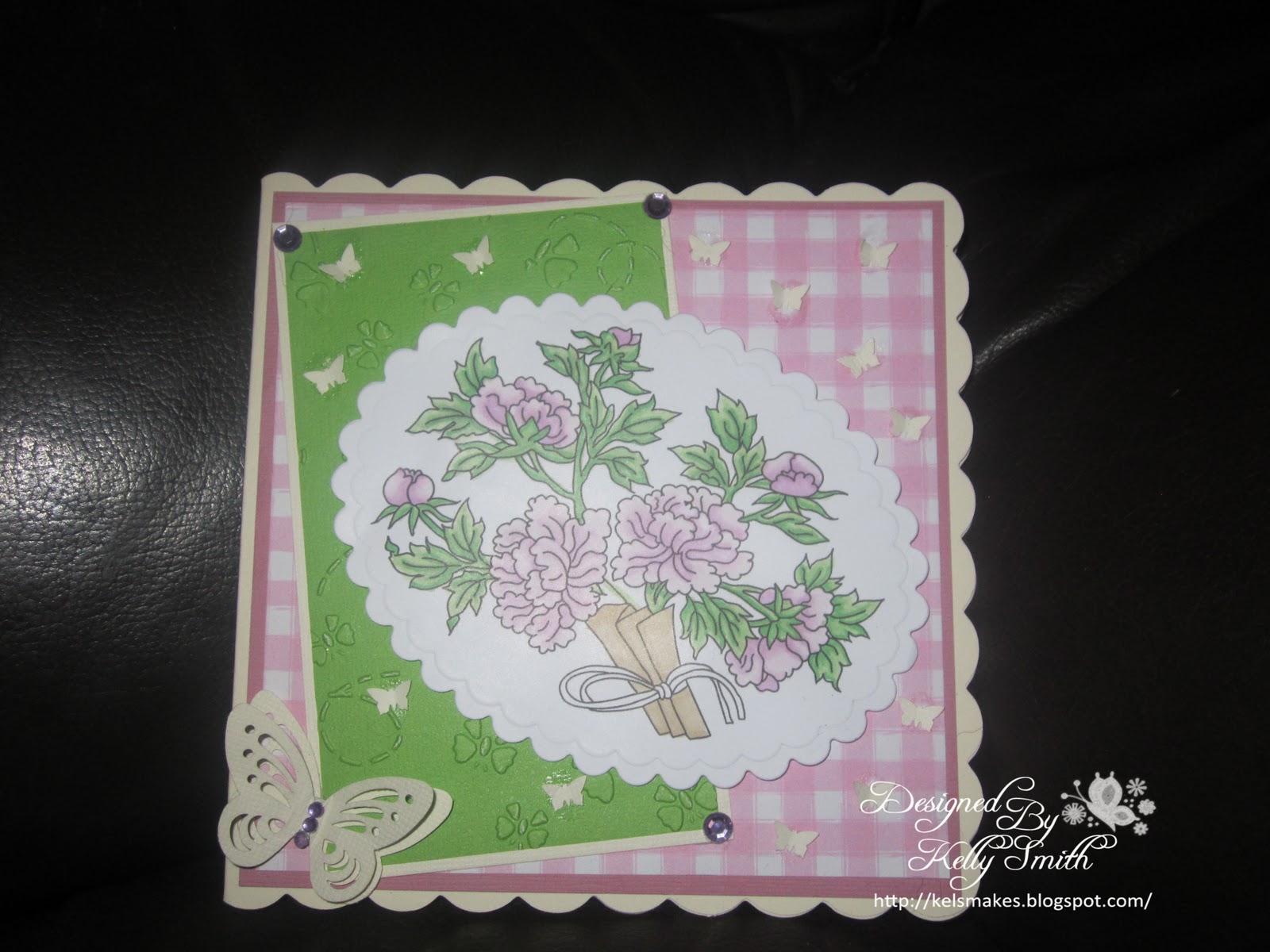
Kelly S


Don't forget we are having a design team call. Here is the post DT call


Wednesday, 11 January 2012

WEEK 7 WINNERS

Well this was out super-de-duper 2 week challenge and we had 3 winners this time instead of 1 and a top 3.
So onto our winners.

The 1st winner gets £10 to spend with Joanna Sheen


The 2nd winner who gets some Stamping Dragon digi images


And the 3rd winner who will receive 3 digi's from Digi Stamp Characters


Well done to all entrants, the DT loves to look at all your creations. If the winners can contact Kelly at kmsmith@sky.com
to claim you prizes and blog badge.


WEEK 6 WINNER & TOP 3

The winner for our WEEK 6 challenge is


and our Top 3 are

3: Jill

Congratulations to you all, please get in touch with Kelly to claim your prize and blog badges.


WEEK 5 WINNER & TOP 3

Hello bloggers

The winner of our week 5 challenge is


and the top 3


Congratulations to you all, if you could please contact Kelly at kmsmith@sky.com
to claim you prize and blog badges.


Sunday, 8 January 2012

How to add a Watermark to your photos


How to add a Watermark to your photos.

This is how i add my watermark to my photos.  There are lots of ways to do it though.  I got my watermark from here
First go to  http://www.getpaint.net/ and download.  It is 100% free and safe.

Once downloaded find the photo you want to watermark and right click and open with paint.net.  And you will get this:

Then you need to click Layers, Import file and find where you have saved your watermark, click it and open.


You will then have this:

Adjust the size and position of your watermark. Once happy with it click File and Save as


Save your image as a jpeg, click OK and you will have this:


Click OK


Click Flatten


Then you are done. Click the X to close the program and this will come up. Click Save.  Then you are done!

This is what you will be able to open afterwards.

I hope that all makes sense, but if you do have any questions just email me or message me on Facebook x Kelly S xx

Thursday, 5 January 2012

Week 10


Happy New Year to you all.


Thank you for joining in with our challenges.


This weeks challenge is sponsored by Whoopsie Daisy.


Here is this weeks inspirational photo.


Here are the fab designs from the DT


Kate


Kelly M


We can't wait to see your creations


************************************************************************